
2 years
−62%+6 months free
190 ₽per month
5 700 ₽ in total
Buy for 5 700 ₽Get Bebra VPN for Mac as a DMG from this page or from the Mac App Store. The DMG is a universal build that runs natively on Apple silicon and Intel Macs with macOS 12 or later.
macOS 12 and newer · version 1.21.0
Other options Mac App StoreYandex Cloud mirror
Updated
One subscription covers both. They differ in the macOS version they need, the prompts on first connect and how you can pay.
| Compared | DMG from this site | Mac App Store |
|---|---|---|
| macOS | 12 or later | 12.4 or later |
| First-time prompts | system extension and VPN configuration | VPN configuration only |
| Payment | on our website | on our website or through the App Store |
On macOS 12.0 to 12.3 only the DMG will install, since the App Store version needs 12.4. The DMG also needs no Apple ID, because it downloads straight from a link.
Open Bebra.dmg and drag the Bebra icon onto the Applications shortcut in the same window.
Launch Bebra from Applications. When macOS warns that the app was downloaded from the internet, click Open. There’s nothing to sign up for. This Mac gets its own guest account automatically.
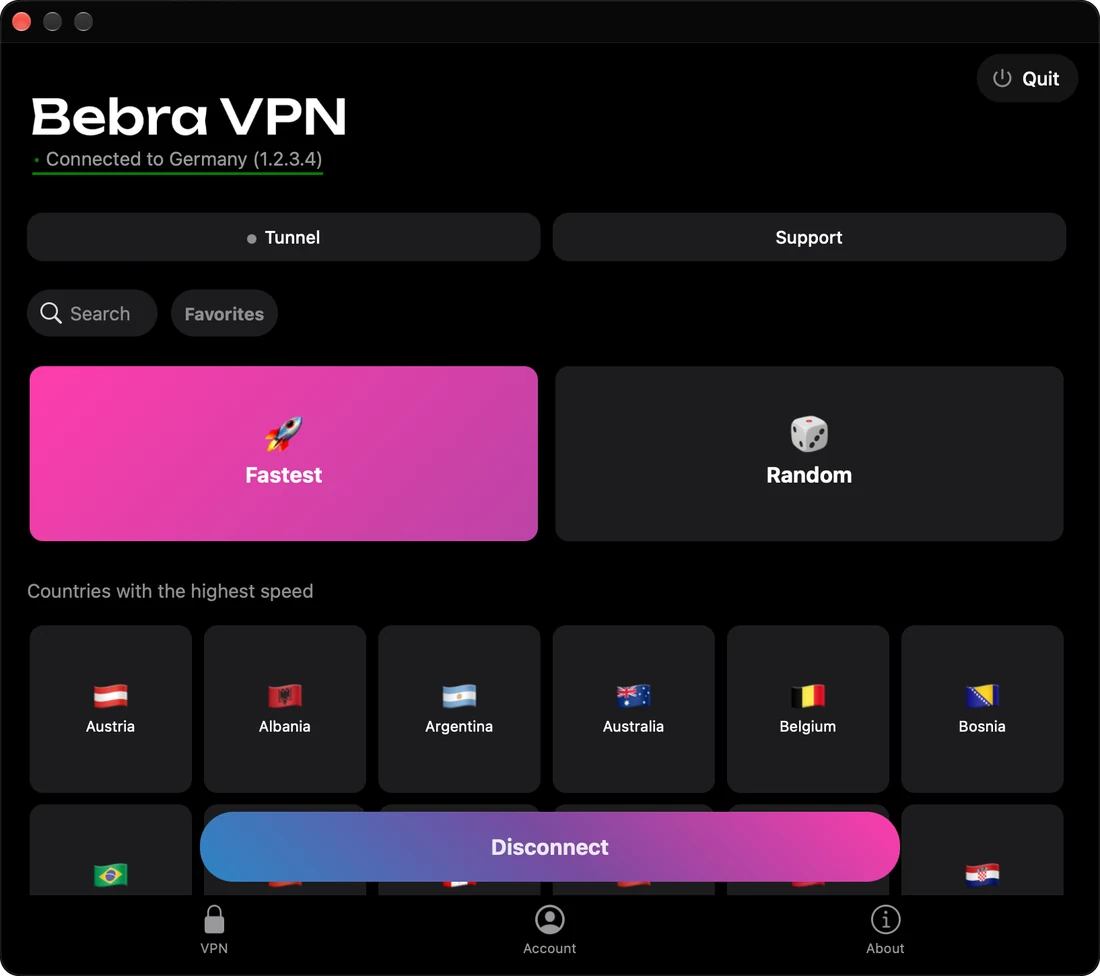
Pick a country or the Fastest tile. A new account has no subscription yet, so that first click brings up Buy Bebra VPN to pick a plan or the trial. Once you’ve subscribed, macOS asks for two permissions on the first connection. After you allow the system extension, click the country again.
The system extension. The website build runs its tunnel through a macOS network extension, and macOS only turns one on with the owner’s consent. Approve it in System Settings. If you can’t find the switch, click Open Settings in Bebra’s hint. Sometimes Bebra asks you to restart the Mac to finish installing the component. After the restart, click the country again.
The VPN configuration. You’ll see this prompt with either version. When macOS asks whether Bebra may add VPN configurations, choose Allow. If you declined by mistake, open System Settings → VPN (on macOS 12, System Preferences → Network) and remove the Bebra configuration. macOS will ask again the next time you connect.
These are the prices for paying on our website. The six bonus months on the 2-year plan come with website and Telegram bot payments, not with App Store purchases.
+6 months free
190 ₽per month
5 700 ₽ in total
Buy for 5 700 ₽350 ₽per month
4 200 ₽ in total
Buy for 4 200 ₽500 ₽per month
Billed every month
Buy for 500 ₽3 days of full access, then 500 ₽ per month. The subscription renews automatically.
Open the Account tab and click Sign out to reach the sign-in screen. If the Buy Bebra VPN window is open, Already have a subscription? → Sign in to account leads to the same screen. With Sign in with Email, we send you a code to enter. Or choose Sign in with code and type the code your phone shows under Account → Sign in on another device.
Open System Settings → VPN (System Preferences → Network on macOS 12) and disconnect Bebra. Then click a country again. That usually fixes it. Our help page has screenshots.
Before you connect, switch off every configuration except Bebra in the VPN settings (under Network on macOS 12), and quit the other VPN apps from their menu bar icons.